Subscribe to our emails
Be the first to know about new collections and special offers.


After-sale Service: Shop's Three Guarantees
Application: For Commercial
Battery Included: No
Black Print Speed: 200mm/sec
Brand Name: HZTZ
Certification: CE,FCC,RoHS
Choice: yes
Color Print Speed: None
Consumable Type: Thermal Paper
Dot Matrix Printer Type: Ticket printers
Double-sided Printing: No
High-concerned chemical: None
Interface Type: USB
Max Paper Size: A5
Max. Resolution: 203dpi
Origin: Mainland China
Paper Feed Mode: Roll Feed
Print Speed: 31ppm
Signal Connection Type: Bluetooth
Size: 80mm
Supports Network Printing: Wired/Wireless
Type: thermal receipt printer
Use: Receipt Printer
Weight: 1.5kg
 If you need any technical support please contact me,
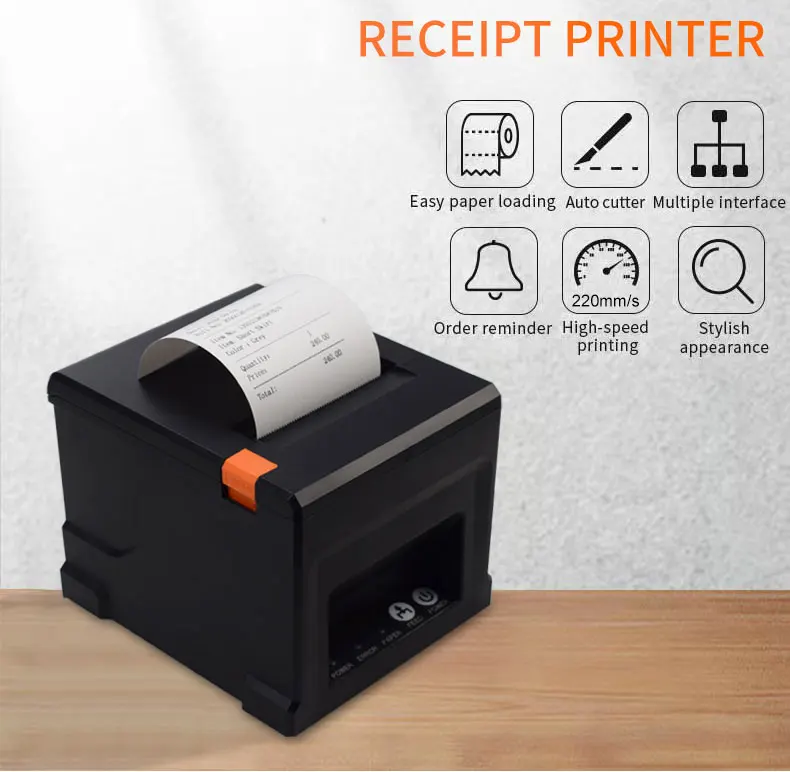
HZTZ HZ-8360 80mm Thermal Receipt Printer Auto cutter Restaurant Kitchen POS Printer
Specifications
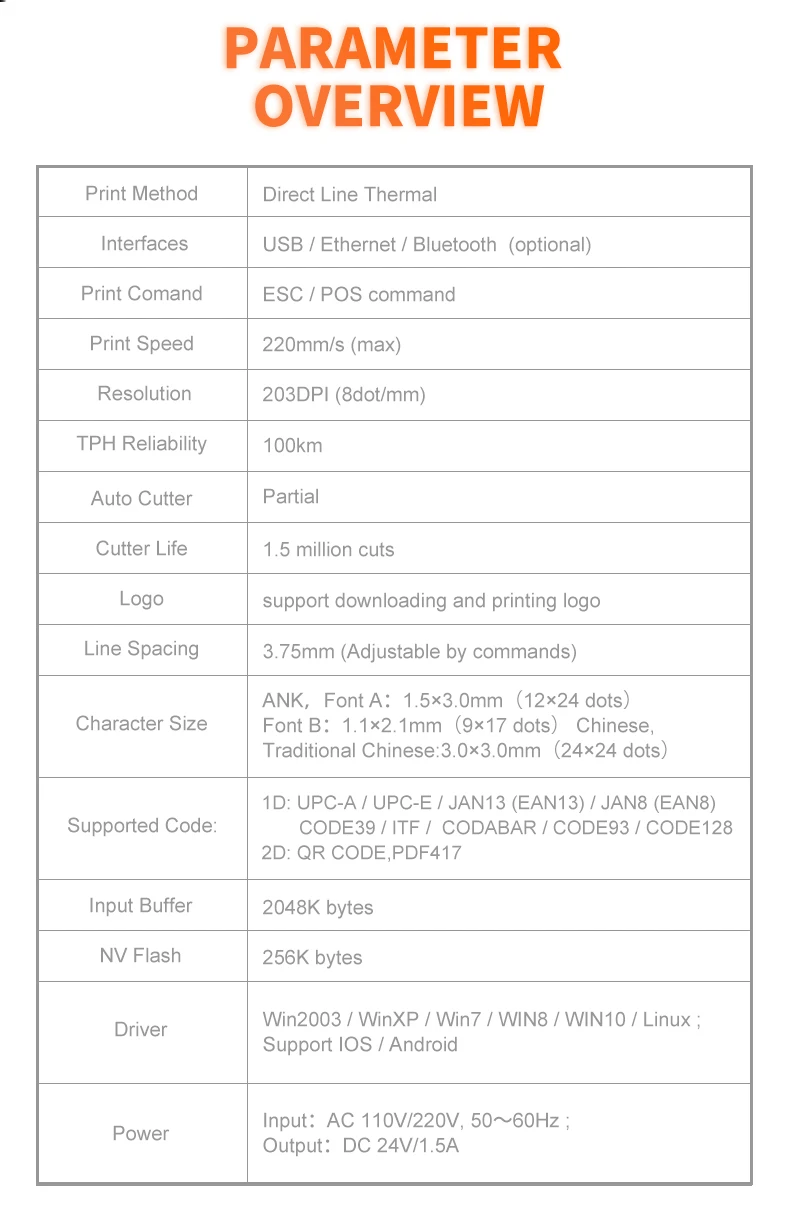
Print Method Direct Line Thermal
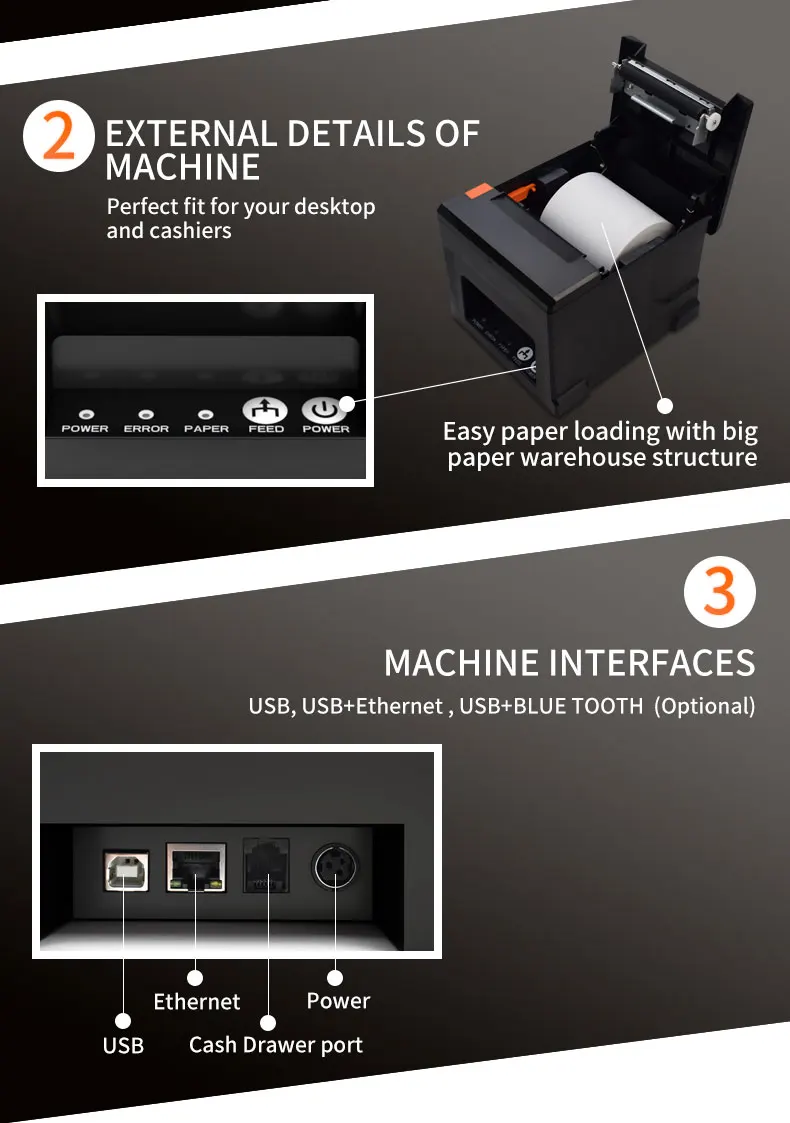
Interfaces USB / LAN / Bluetooth (optional)
Print Comand ESC / POS command
Print Speed 220mm/s
Resolution 203DPI (8dot/mm)
TPH Reliability 100km
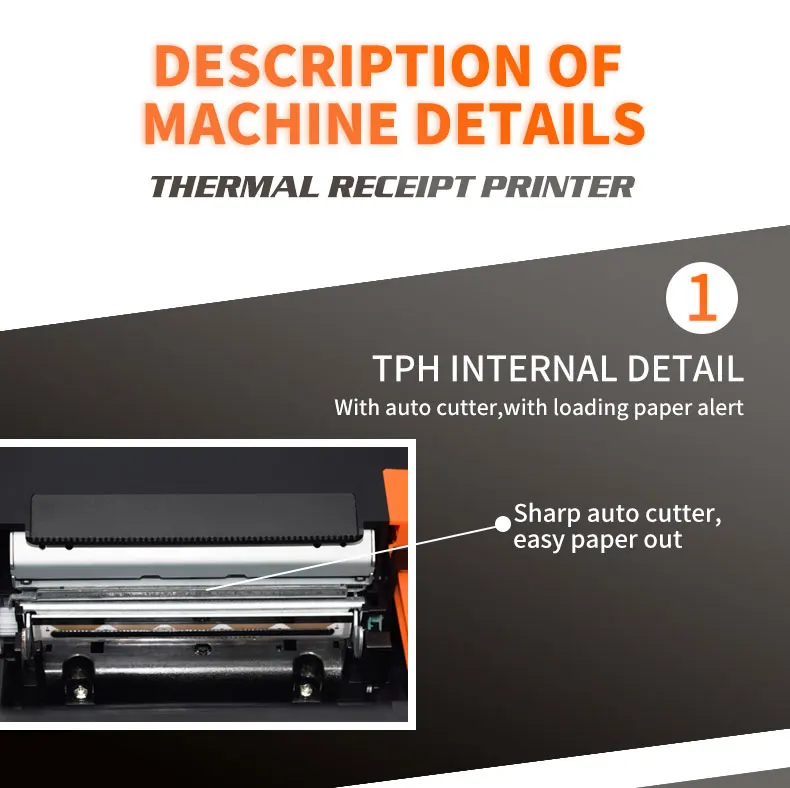
Auto Cutter Partial
Cutter Life 1.5 million cuts
Logo support downloading and printing logo
Line Spacing 3.75mm (Adjustable by commands)
"Extension Character
Sheet" PC437(Standard Europe),Katakana,PC850(Multilingual),PC860(Portuguese),PC863(Canadian),PC865(Nordic),West Europe,Greek,Hebrew,East Europe,Iran,WPC1252,PC866(Cyrillic#2),PC852(Latin2),PC858,IranII,Latvian,Arabic,Thai,PT151(1251)
Character Size ANK,Font A:1.5×3.0mm(12×24 dots) Font B:1.1×2.1mm(9×17 dots) Chinese, Traditional Chinese:3.0×3.0mm(24×24 dots)
Supported Code: "1D: UPC-A / UPC-E / JAN13 (EAN13) / JAN8 (EAN8) / CODE39 / ITF / CODABAR /
CODE93 / CODE128
2D: QR CODE,PDF417"
Input Buffer 2048K bytes
NV Flash 256K bytes
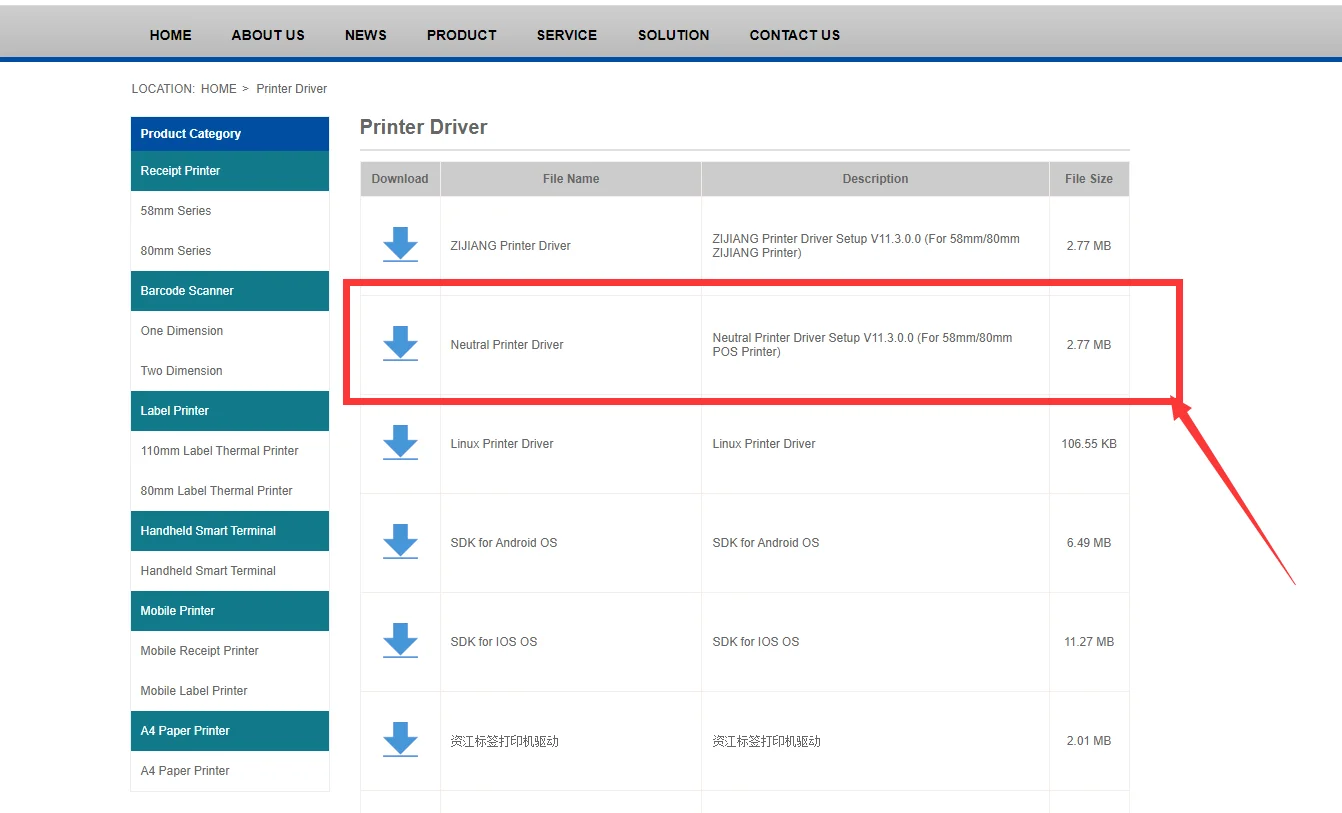
Driver Win2003 / WinXP / Win7 / WIN8 / WIN10 / Linux ; Support IOS / Android
Power Input:AC 110V/220V, 50~60Hz ; Output:DC 24V/2.5A
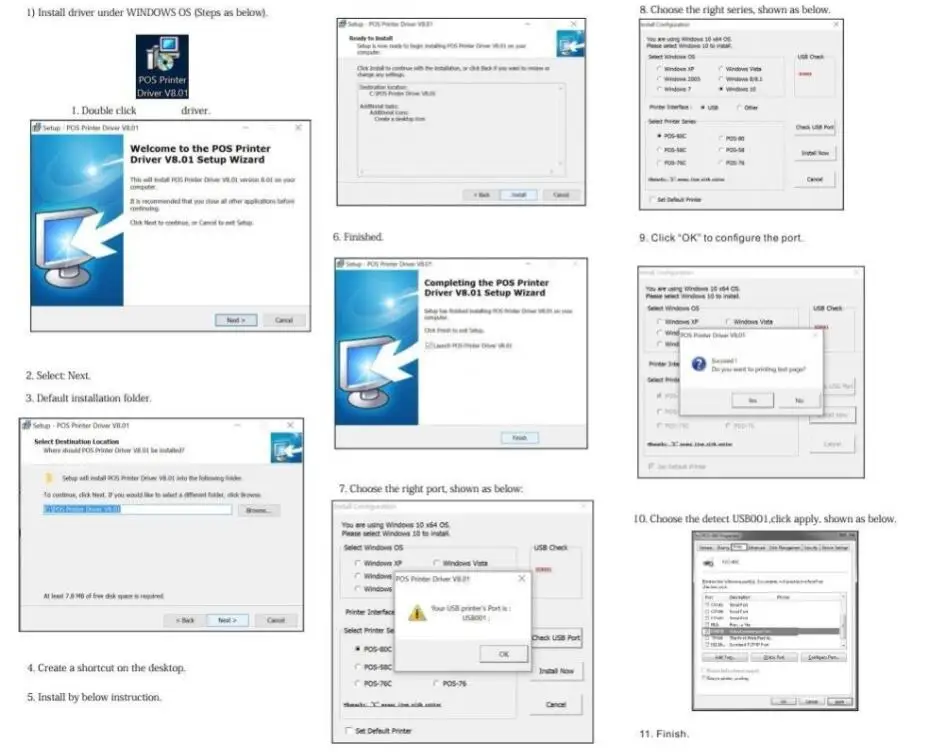
How to install printer driver?
1. Insert power cable into thermal printer.
2. Connect the printer with windows PC via USB cable.
3. Place thermal paper into printer.
4. Install printer driver by following the User Manual along with package.
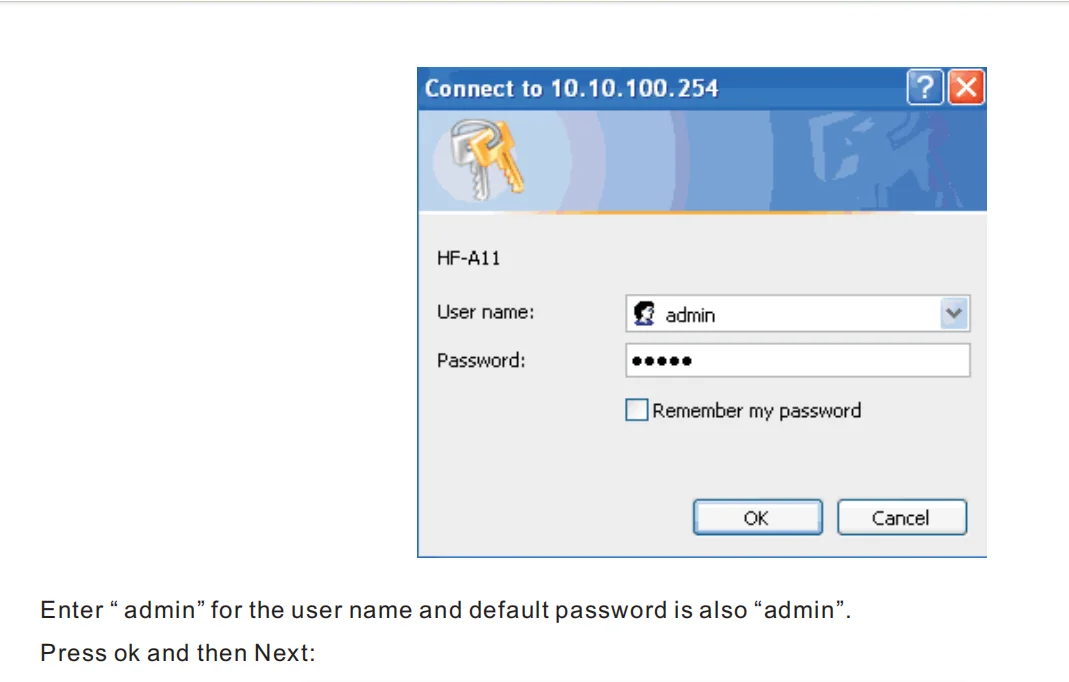
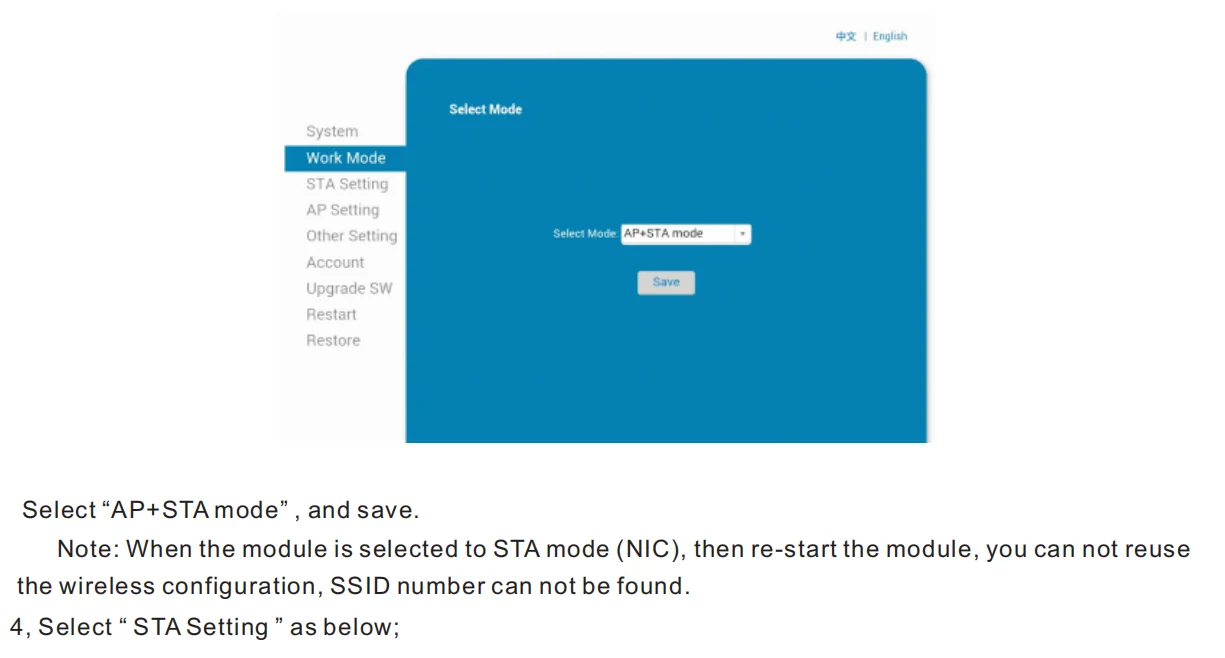
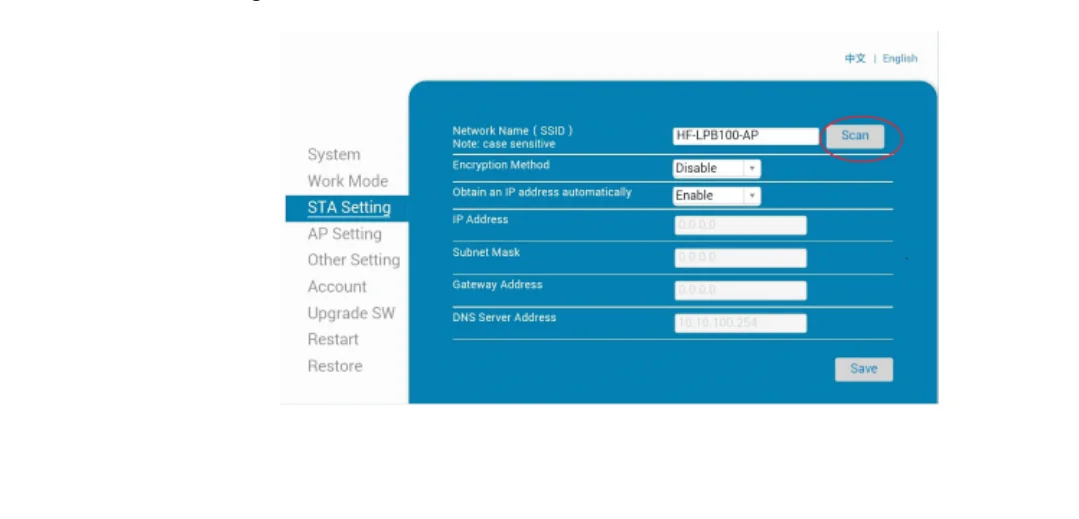
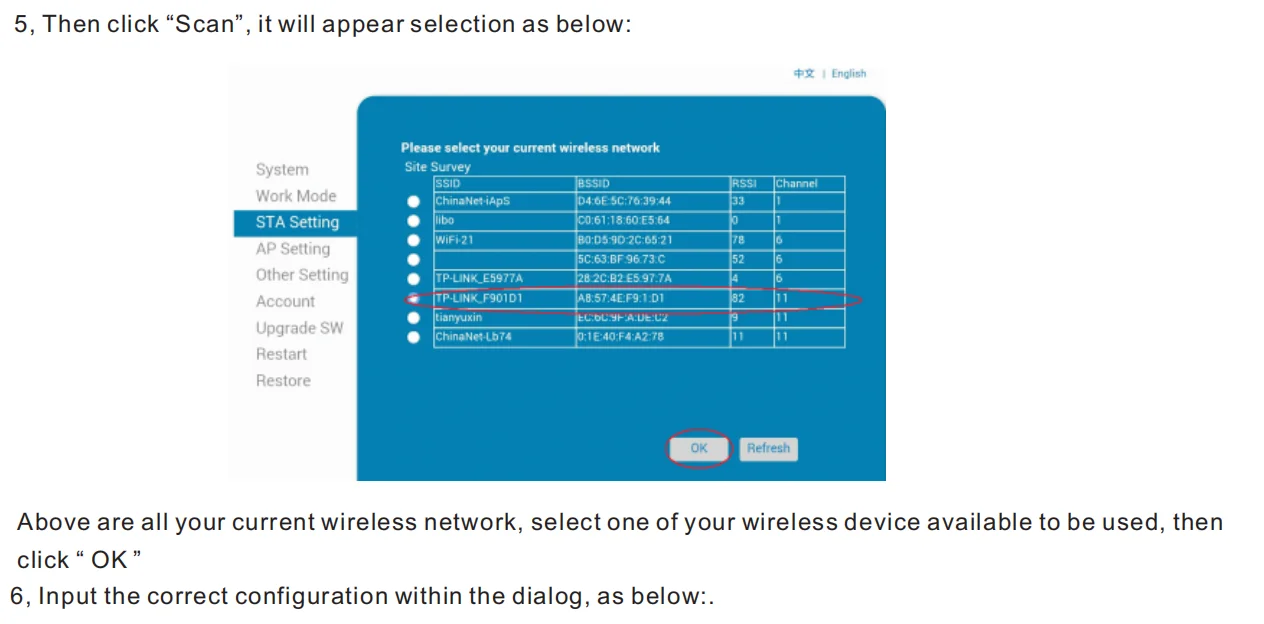
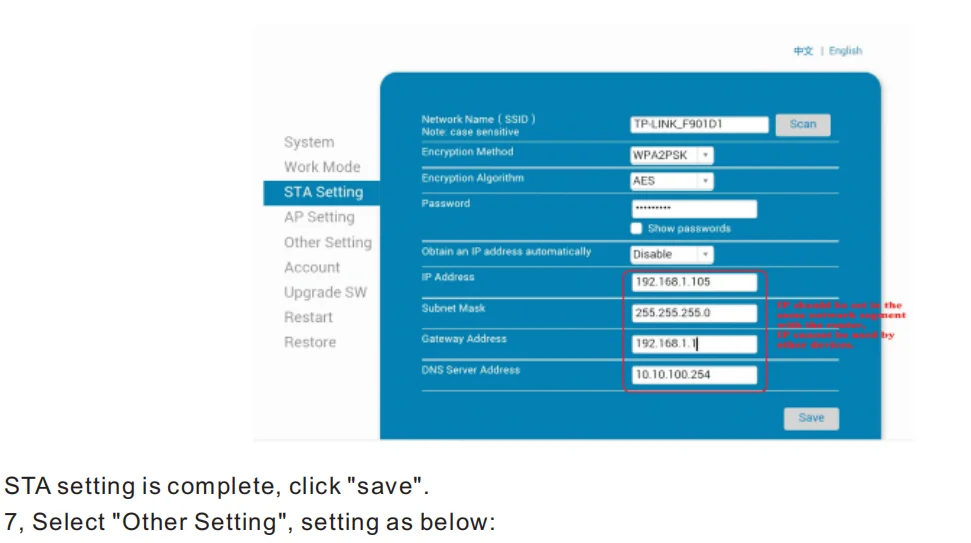
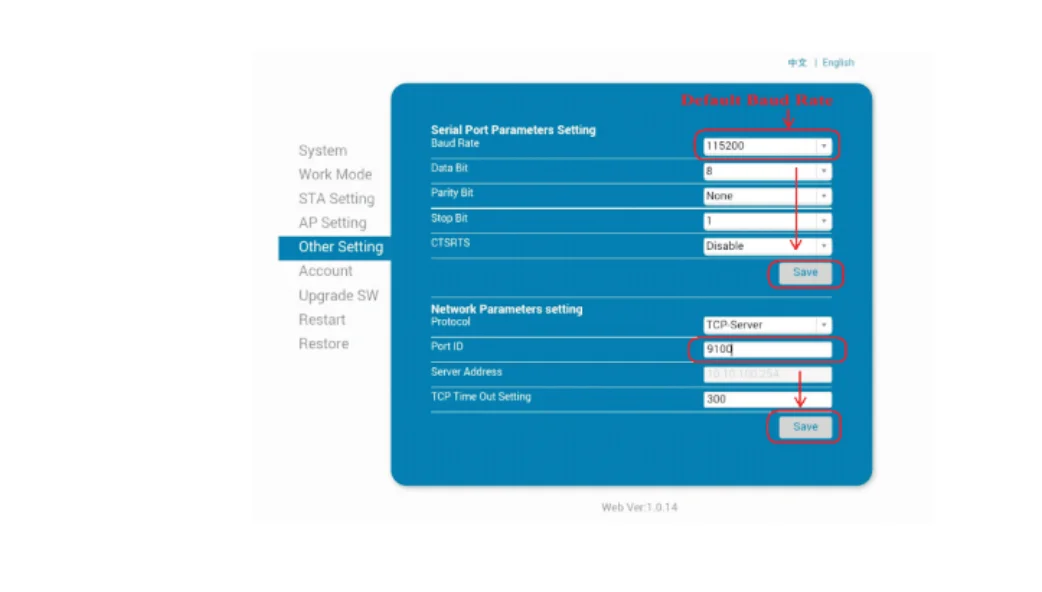
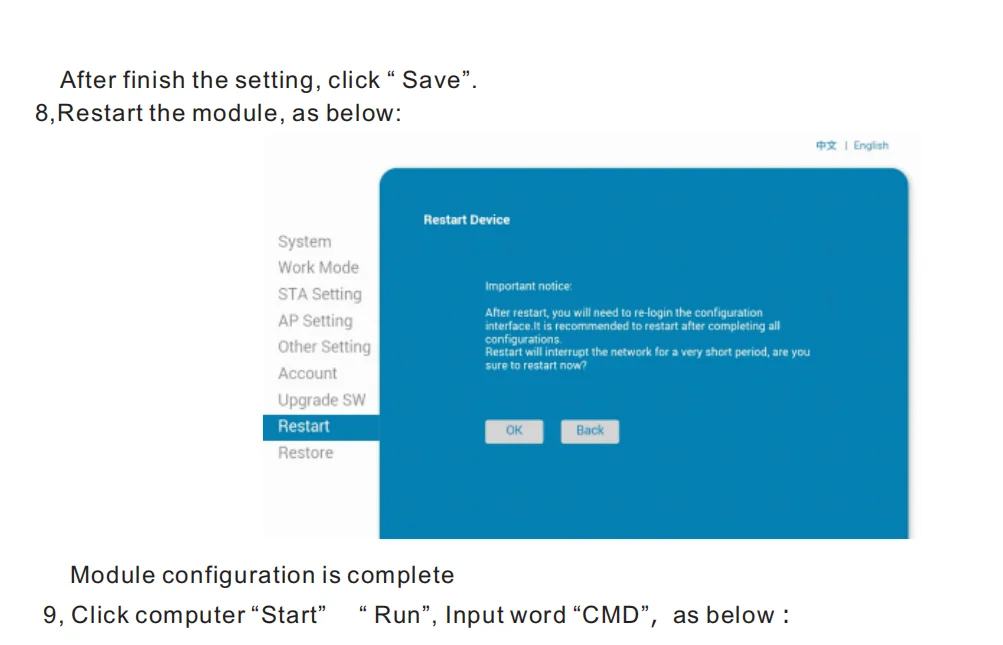
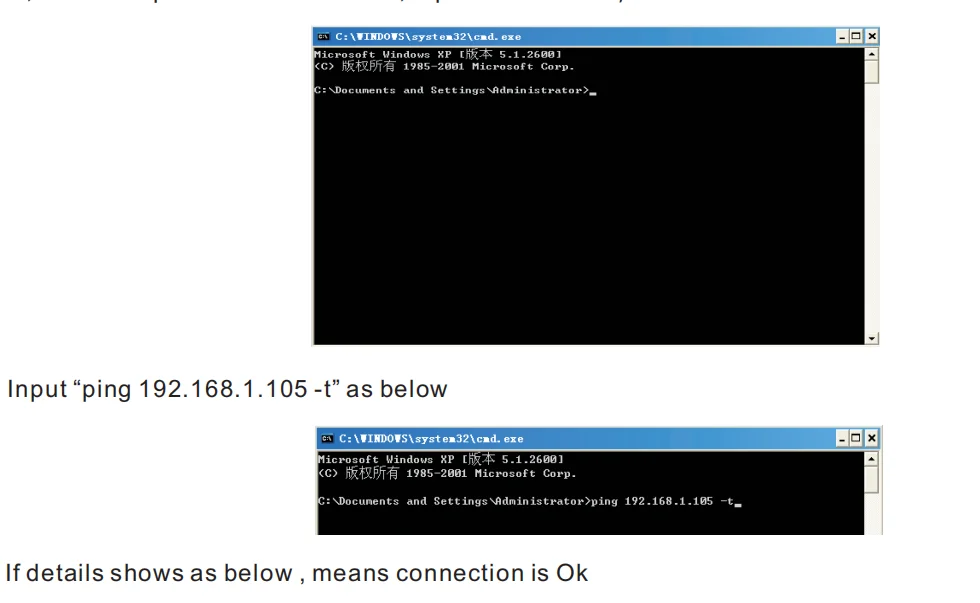
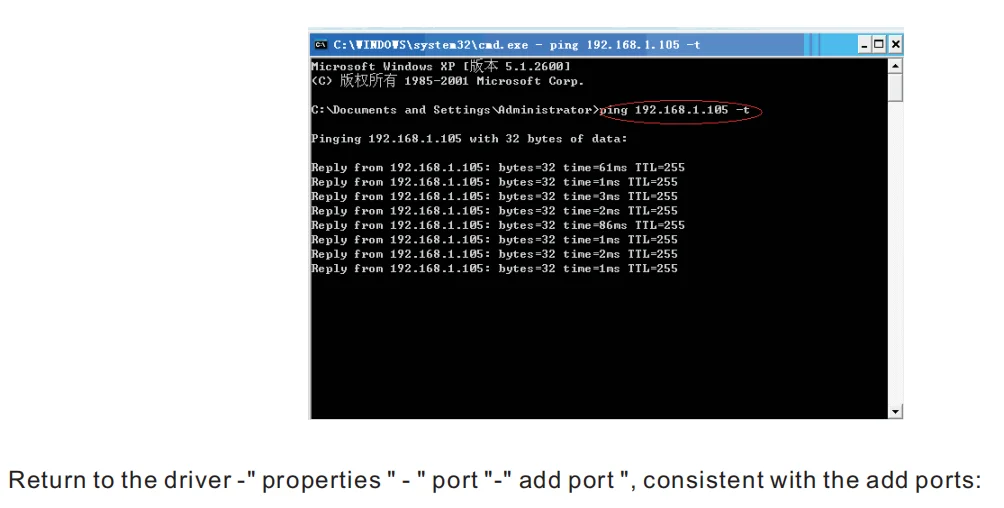
how to connect to MAC
Setting Guide:
Setting Guide:
How to connect printer with cash drawer?
1. Connect the cash drawer with printer through RJ11/RJ12 cable.
2. Install printer driver and set cash drawer from 【Printer Properties】.
3. Set 【Open cash drawer before printing from 【Device Settings】.
How to connect the 80MM printer with your software?
1. Please install the printer first in your windows PC.
2. Set the printer from your software "Printer Settings".
3. If you don't know where to add printer in your software, please consult with software supplier for guide.